

If you’re studying at Regent College London, you’ll be using RCL Canvas to access your course materials, submit assignments and stay in touch with your tutors.
This guide answers some of the most common questions students have about using RCL Canvas, helping you get started with confidence.
What is Canvas?
Canvas by Instructure is the Virtual Learning Environment (VLE) used at Regent College London. RCL Canvas is your central hub for learning, where you can access key course information, teaching resources and submit assignments.
Here’s what you can expect to do with RCL Canvas:
- Access your course materials online 24/7
- Submit assignments
- Access grades and feedback
- Receive updates and announcements from your tutors
- Access multimedia content and additional learning resources
- Discuss and share ideas with classmates
How do I log into RCL Canvas?
To access RCL Canvas, visit our Canvas login page. This will take you to the Student Web portal, where you can sign in securely.
When will I get access to RCL Canvas?
Once your enrolment is complete and your student credentials have been set up by our IT team, you will be able to access RCL Canvas.
If you’re still waiting, you can log a ticket with IT Support for further assistance.
Your modules will appear on RCL Canvas when the semester officially begins.
Key features of RCL Canvas
RCL Canvas includes a range of features designed to support your learning. The tools available may vary depending on your course, but here are some key areas to explore from the menu on the left.
Dashboard
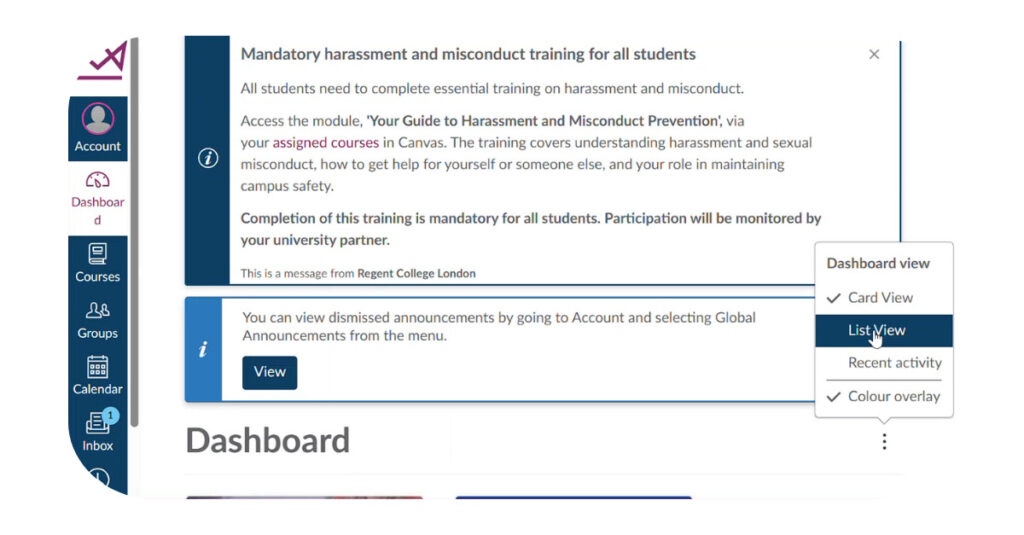
View all your enrolled courses and important announcements in one place.
Notifications
Customise your notification settings so you don’t miss important updates, feedback or messages.
Portfolios
Create and store your own work in one place. This is particularly useful for assessments that require a portfolio. You can also share your work directly with your tutor.
Calendar
Sync your Canvas calendar with Outlook to manage all your deadlines in one place.
Inbox
An internal messaging system that lets tutors contact you directly. You’ll receive email notifications when you get a new message.
Studio
A built-in video tool that allows you to record, upload and submit video assignments.
Resources and guides
Access a range of support materials, including the “RCL Guides” – internal guides designed to help you navigate RCL Canvas and answer common questions.
Talis
Access your reading lists through Talis within your modules, including essential and recommended resources.
In this video, Shareen Ghaly, our Library Assistant, introduces three key Talis features to help you prepare for lectures, seminars and assignments.
Why can’t I see my modules on Canvas?
If your modules aren’t showing on RCL Canvas, don’t worry – this is a common issue and is usually due to timing or access rather than a technical fault.
Modules will only appear once the semester has started and your enrolment has been fully processed. If you’ve recently enrolled, there may be a short delay while your account is set up.
Other common reasons include:
- Your module enrolment is still being finalised
- Your tutor has not yet published the module
- The module has not started yet
If your course has already started and your modules are still not visible, try:
- Logging out of RCL Canvas and back in again
- Checking your email for updates from your tutor
- Making sure you are logged into the correct account
If the issue continues, contact IT Support or speak to your tutor for further help.
Is there a Canvas app?
Yes, there is an official Canvas by Instructure app available for iOS and Android devices. It allows you to access RCL Canvas on the go, whether you’re in class, commuting or studying remotely.
However, while the app is useful for reviewing content and staying up to date, we do not recommend using it to submit assignments.
Most submissions are made via Turnitin, and using the app can sometimes cause errors when switching between app and browser. For this reason, it’s best to submit assignments using a web browser for a more reliable experience.
How do I submit assignments via RCL Canvas?
Submitting assignments via RCL Canvas is straightforward.
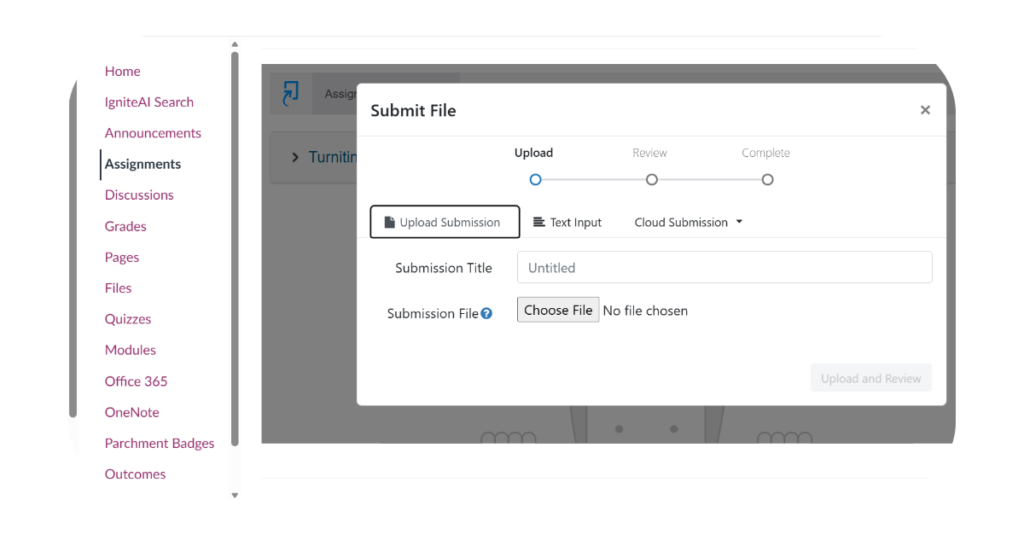
Select your course, then choose “Assignments” from the menu on the left. From there, select the relevant task from your upcoming assignments.
Click “Upload assignment”, add your submission title and file, then select “Submit”.
Students may face issues when submitting work at the last minute.
For example, if your deadline is 23:59, try to submit well in advance. This gives you time to resolve any unexpected issues and avoids unnecessary stress.
As soon as the submission link becomes available, it’s a good idea to test it by accessing the page and accepting any Turnitin terms and conditions.
Does Regent College London use Blackboard or Moodle?
RCL no longer uses Moodle. While select courses may use Blackboard, this is being phased out.
What should I do if I run into problems with RCL Canvas?
If you need help using RCL Canvas, we recommend checking the “RCL Guides” in the Resources and Guides section. These provide step-by-step support for common tasks.
If you are having trouble accessing your account or logging in, please contact IT Support for assistance.
Top tips for using RCL Canvas
Getting into good habits early will help you make the most of RCL Canvas throughout your studies.
- Don’t leave submissions until the last minute – upload early to avoid errors
- Use a web browser for assignments instead of the app
- Check your notifications regularly so you don’t miss important updates
- Switch to dashboard list view to keep track of deadlines
- Log in frequently to stay up to date with your modules
Make the most of RCL Canvas
RCL Canvas is at the centre of your learning experience at Regent College London. From accessing materials to submitting assignments and communicating with tutors, it will be an essential tool throughout your course.
By familiarising yourself with RCL Canvas early and following the guidance above, you’ll be well prepared to stay organised, meet deadlines and get the most out of your studies.



Connect with Regent College London